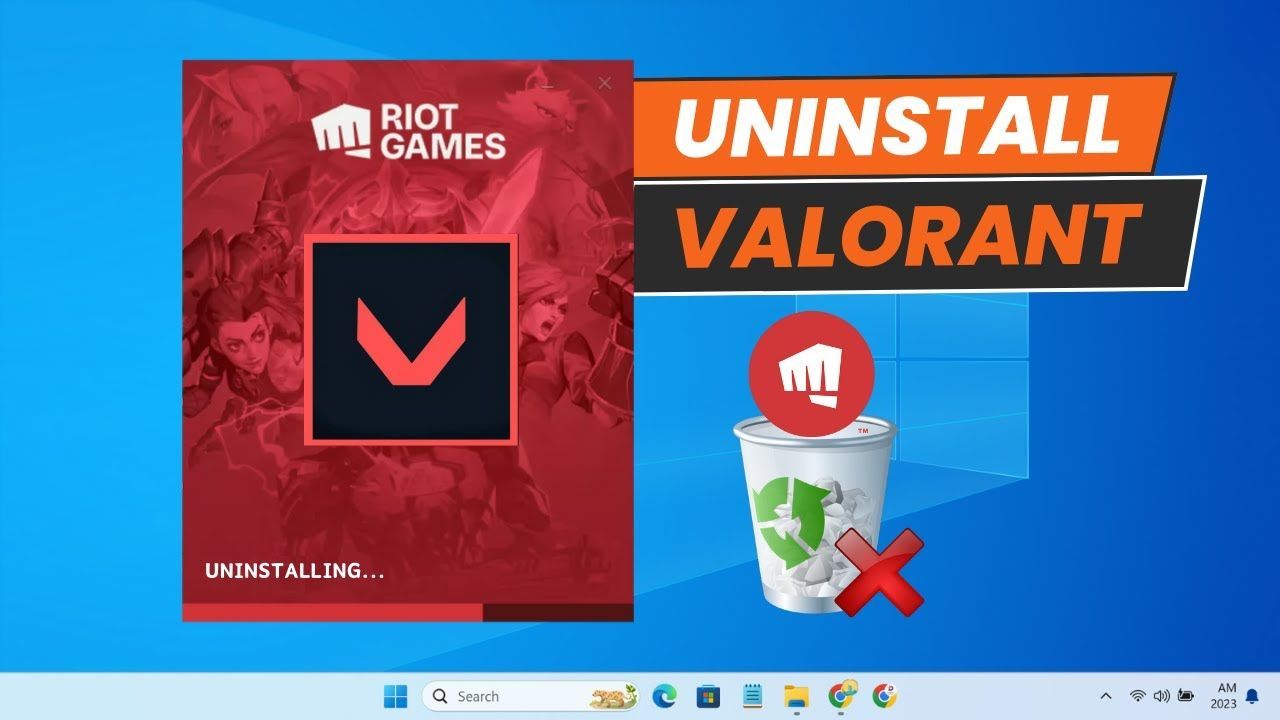
If you’ve ever tried uninstalling Valorant and discovered that it doesn’t disappear as easily as other games, you’re not alone. Many players remove the game through Windows settings only to find that Riot Vanguard, Valorant’s anti-cheat software, is still running in the background. Others receive error messages that prevent the game from being removed altogether.
Whether you’re freeing up storage space, troubleshooting performance issues, taking a break from competitive gaming, or permanently moving on from Valorant, understanding the correct uninstall process can save you time and frustration.
Unlike many PC games, Valorant relies on Riot Vanguard, a kernel-level anti-cheat system that starts with Windows. Because Vanguard operates differently from standard software, simply deleting Valorant files or uninstalling through the Riot Client may not completely remove everything.
This guide walks through the safest and most effective methods to uninstall Valorant on Windows 11 and Windows 10. You’ll learn how to remove Valorant from the Riot Client, uninstall Riot Vanguard, fix common uninstall problems, and ensure no unnecessary files remain on your system.
Why People Uninstall Valorant
Players uninstall Valorant for various reasons:
- Freeing up SSD or hard drive space
- Fixing game crashes or performance issues
- Reinstalling a clean version of the game
- Reducing background processes
- Taking a break from competitive gaming
- Switching to other games
Regardless of your reason, following the correct steps prevents leftover files and software conflicts.
Before You Uninstall Valorant
Before removing the game, keep these points in mind:
Your Riot Account Remains Safe
Uninstalling Valorant does not delete your Riot Games account. Your skins, ranks, settings, and purchases remain attached to your account and can be accessed again if you reinstall later.
Close All Riot Applications
Before uninstalling, close:
- Valorant
- Riot Client
- Riot Vanguard
- Any Riot Games launcher processes
Leaving them open may cause uninstall errors.
How to Uninstall Valorant on PC
This is the most reliable method for Windows users.
Step 1: Exit Riot Vanguard
- Locate the Vanguard icon in the system tray.
- Right-click the Vanguard icon.
- Select Exit Vanguard.
- Confirm the action.
This step is important because Vanguard can prevent Valorant from being removed while active.
Step 2: Open Installed Apps
On Windows 11:
- Press Windows + I.
- Select Apps.
- Click Installed Apps.
On Windows 10:
- Open Settings.
- Select Apps.
- Open Apps & Features.
Step 3: Uninstall Valorant
- Search for Valorant.
- Click the three-dot menu or select the game.
- Choose Uninstall.
- Confirm the removal process.
Wait for Windows to complete the uninstall.
How to Uninstall Valorant from Riot Client
Some users prefer removing the game through Riot software.
Method
- Open the Riot Client.
- Locate Valorant in your game library.
- Click the settings icon near the game.
- Choose the uninstall option if available.
- Follow the prompts.
Keep in mind that even after uninstalling Valorant through the Riot Client, Riot Vanguard may remain installed.
How to Uninstall Riot Vanguard
Removing Vanguard is essential if you want a complete uninstall.
Method 1: Through Windows Settings
- Open Settings.
- Navigate to Apps.
- Search for Riot Vanguard.
- Click Uninstall.
- Confirm the action.
Method 2: Through Control Panel
- Press Windows + R.
- Type control and press Enter.
- Select Programs and Features.
- Find Riot Vanguard.
- Right-click and choose Uninstall.
Restart your PC after Vanguard has been removed.
How to Completely Remove Valorant Files
In most cases, the standard uninstall process removes everything necessary. However, if you’re troubleshooting or preparing for a fresh installation, you may want to delete remaining files.
Check These Locations
Open File Explorer and inspect:
- C:\Riot Games
- C:\Program Files\Riot Vanguard
- C:\ProgramData\Riot Games
Delete any remaining folders related to Valorant if they still exist.
Clear Temporary Files
- Press Windows + R.
- Type %temp%.
- Delete unnecessary temporary files.
This can help reclaim additional storage space.
How to Uninstall Valorant on Windows 11
Windows 11 users can follow these specific steps:
- Press Windows + I.
- Select Apps.
- Click Installed Apps.
- Locate Valorant.
- Select Uninstall.
- Remove Riot Vanguard separately.
- Restart your computer.
The process is nearly identical to Windows 10 but uses the newer Installed Apps interface.
Common Problems When Uninstalling Valorant
Problem 1: Valorant Won’t Uninstall
Possible causes:
- Vanguard is still running.
- Riot Client processes remain active.
- Administrator permissions are required.
Solution:
- Open Task Manager.
- End Riot-related processes.
- Exit Vanguard.
- Try uninstalling again.
Problem 2: Riot Vanguard Won’t Uninstall
Solution:
- Exit Vanguard from the system tray.
- Restart the computer.
- Attempt the uninstall again.
- Run Windows Settings as an administrator if necessary.
Problem 3: Uninstall Button Is Missing
Sometimes Windows may not display the uninstall option correctly.
Try:
- Using Control Panel instead of Settings.
- Running the Riot Client.
- Reinstalling Valorant and then uninstalling it properly.
Problem 4: Files Remain After Uninstall
This is usually harmless.
However, you can manually delete remaining Riot Games folders if you want a completely clean system.
How to Reinstall Valorant After Uninstalling
If your goal is troubleshooting rather than permanently removing the game, reinstalling is straightforward.
- Download the latest Riot Client.
- Sign in to your Riot account.
- Install Valorant.
- Allow Riot Vanguard to install automatically.
- Restart your computer.
Many performance and update issues are resolved through a clean reinstall.
Does Uninstalling Valorant Improve PC Performance?
The answer depends on your system.
Benefits may include:
- Reduced background services
- More available storage space
- Fewer startup processes
- Less resource usage from Riot Vanguard
On modern gaming PCs, the difference may be small. On older systems with limited resources, users often notice improved responsiveness after removing unnecessary software.
Frequently Asked Questions
Can I uninstall Valorant without uninstalling Riot Vanguard?
Yes. However, Vanguard will remain installed and may continue running on your system.
Does uninstalling Valorant delete skins?
No. Skins, progress, and purchases remain linked to your Riot account.
Why is Riot Vanguard installed separately?
Valorant uses Vanguard as its anti-cheat system. Riot separates it from the game because it operates at a deeper system level than standard gaming software.
Do I need to restart my PC after uninstalling?
It is strongly recommended, especially after removing Riot Vanguard.
Can I reinstall Valorant later?
Absolutely. Simply download the Riot Client and sign in using your existing account.
Final Thoughts
Uninstalling Valorant is slightly more involved than removing most PC games because of Riot Vanguard. Many users uninstall the game but forget about Vanguard, leaving background components installed on their systems. For a complete removal, always uninstall both Valorant and Riot Vanguard before restarting your computer.
Whether you’re clearing storage, fixing technical issues, or taking a break from ranked matches, following the correct process ensures a clean uninstall and avoids common errors. If you decide to return later, your Riot account, skins, and progress will still be waiting for you.
Lakers Game looks into the life stories, family backgrounds, and personal journeys of well-known figures, helping readers better understand the people behind media coverage and news reports.